Machine Detail
The machine detail page shows everything about a single machine. Click any hostname on the Machines list page to open it.
The page has a left sidebar with navigation tabs organized into three groups:
General - Machine — Overview and editable settings - Hardware — Detected hardware inventory - Preview — Rendered cloud-init configuration - Provisions — Provisioning history and trigger
Networking - Network — Interfaces, NAT/STUN, routes - Routing — BGP Routing Information Base (RIB) - Endpoints — Observed public endpoints - Peers — Mesh network peer connectivity - BGP Announcements — BGP routes for this machine
Tools - Terminal — Interactive remote shell
Machine (Overview)
The Machine tab is the default view. It provides an editable form for the machine's key settings.
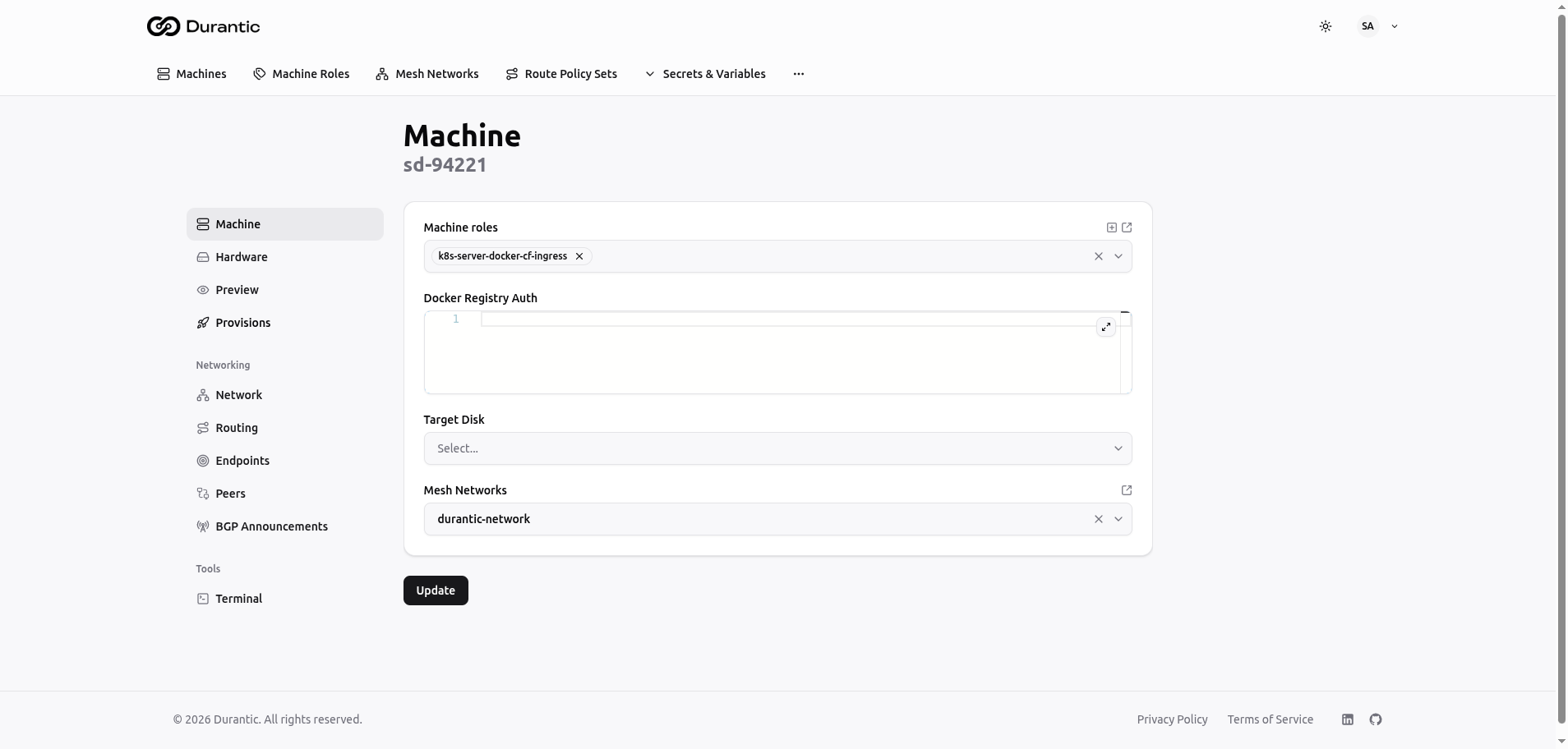
Fields:
| Field | Description |
|---|---|
| Machine roles | Multi-select tag input. Assign one or more roles to the machine. Each role contributes to the final cloud-init configuration. Click the + icon to add roles, or click the x on a tag to remove one. The external link icon opens the role's edit page. |
| Docker Registry Auth | A YAML code editor for providing credentials to access private OCI registries. This overrides the organization-level registry auth for this machine. |
| Target Disk | Dropdown listing the disks detected on the machine. Select which disk the operating system should be installed to during provisioning. |
| Mesh Networks | Dropdown to assign the machine to a mesh network. The external link icon opens the mesh network's detail page. |
Click Update to save changes.
Hardware
The Hardware tab displays read-only information about the machine's physical components, as reported by the agent.
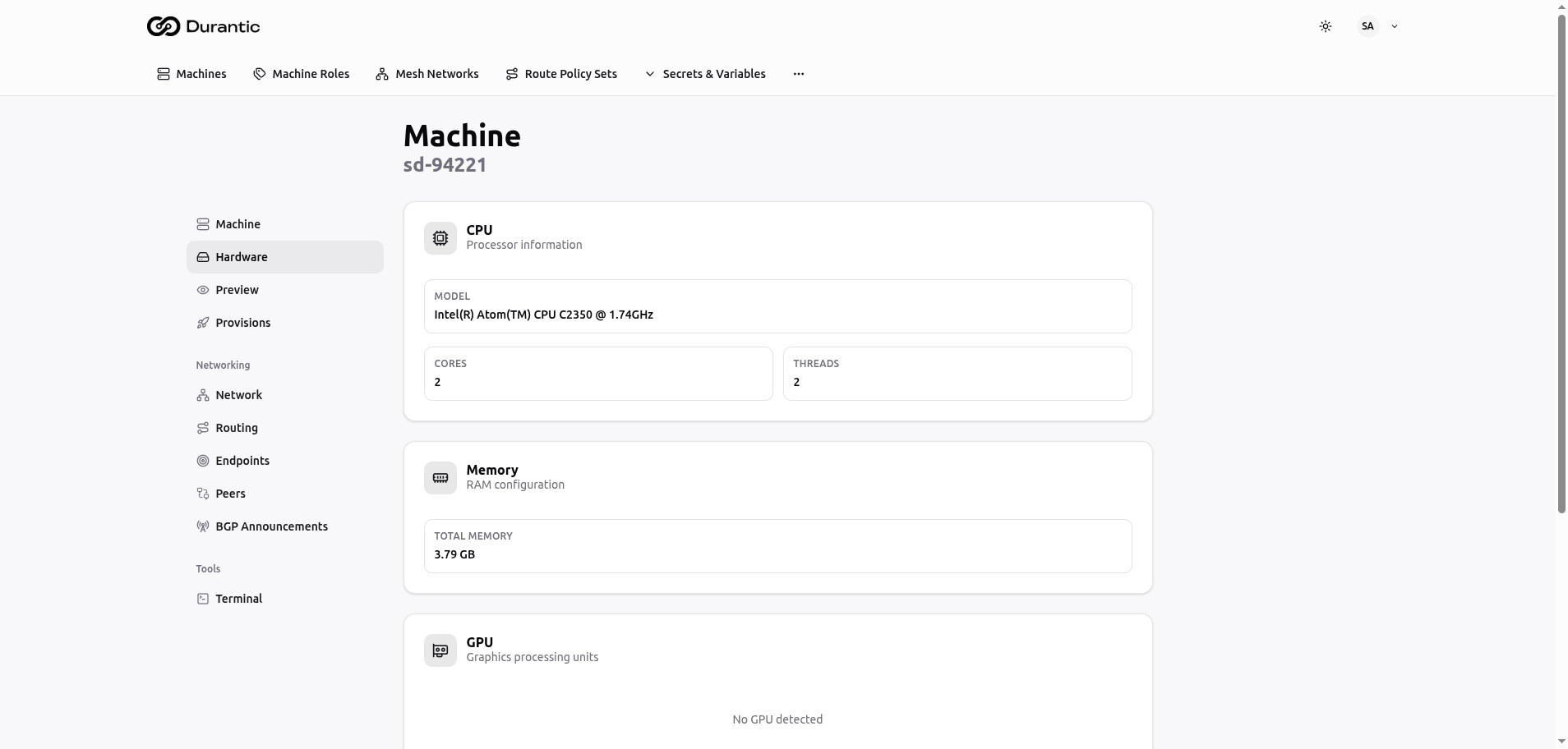
Sections:
CPU
| Field | Description |
|---|---|
| Model | Processor model name and clock speed (e.g., "Intel(R) Atom(TM) CPU C2350 @ 1.74GHz") |
| Cores | Number of physical CPU cores |
| Threads | Number of logical threads (including hyper-threading) |
Memory
| Field | Description |
|---|---|
| Total Memory | Total installed RAM in GB |
GPU
Displays detected graphics processing units. Shows "No GPU detected" if the machine has no discrete or integrated GPU recognized by the agent.
Storage
Lists all detected storage devices with:
| Field | Description |
|---|---|
| Model | Drive model name |
| Type | Storage technology (SSD, NVMe, HDD) |
| Size | Drive capacity |
Preview
The Preview tab shows the final cloud-init configuration that will be applied to the machine during provisioning. This is the merged and rendered result of all assigned machine roles.
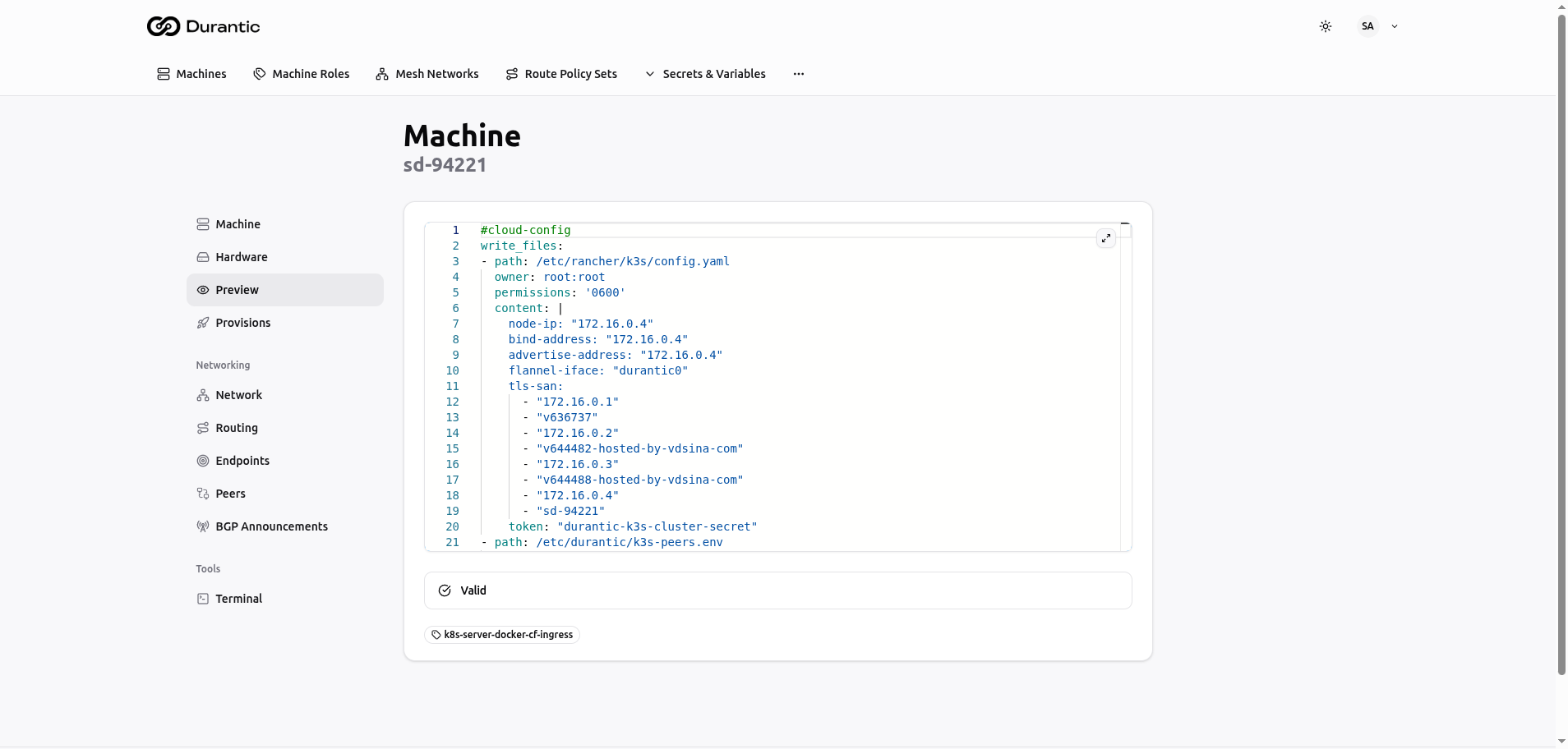
The configuration is displayed in a read-only Monaco code editor with YAML syntax highlighting and line numbers. You cannot edit the preview directly — to change the configuration, modify the machine's assigned roles.
Below the editor:
- Validation status — Shows "Valid" with a checkmark if the rendered YAML is well-formed, or displays warnings if issues are detected.
- Role tags — Badges showing which machine roles contributed to this configuration. Click a tag to navigate to that role's edit page.
Provisions
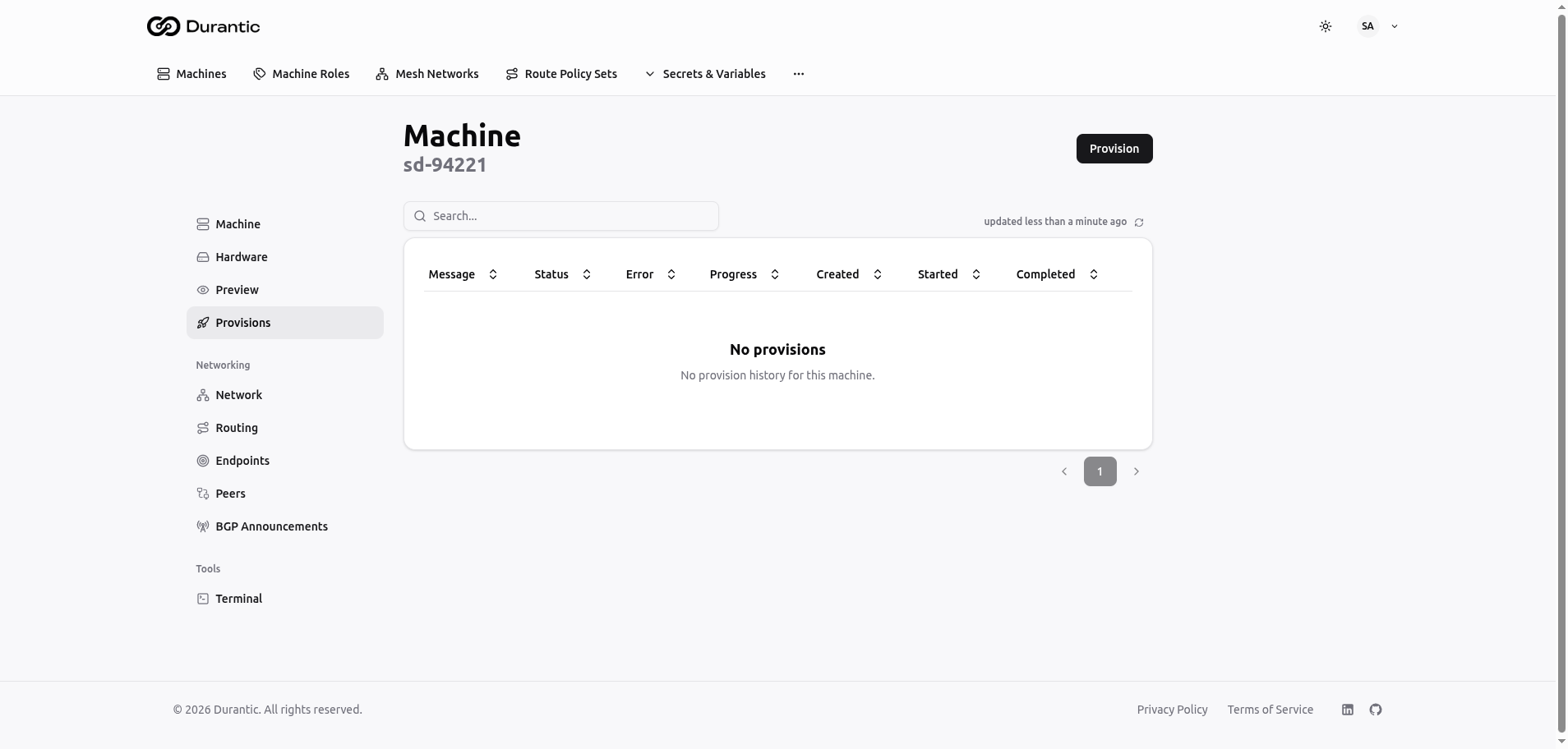
The Provisions tab shows the history of all provisioning operations for this machine and lets you trigger a new one.
Provision Button
Click the Provision button in the top-right corner to start a new provisioning operation. The agent will stream the OCI image to the target disk and apply the cloud-init configuration.
History Table
| Column | Description |
|---|---|
| Message | A description of the provisioning step or result |
| Status | Current state of the provision (Pending, Running, Completed, Failed) |
| Error | Error message if the provision failed, empty otherwise |
| Progress | Completion percentage (0-100%) |
| Created | Timestamp when the provision was queued |
| Started | Timestamp when the provision began executing |
| Completed | Timestamp when the provision finished |
When no provisioning has been performed, the table shows "No provisions — No provision history for this machine."
Network
The Network tab provides a comprehensive view of the machine's network configuration, NAT status, and routing table as reported by the agent.
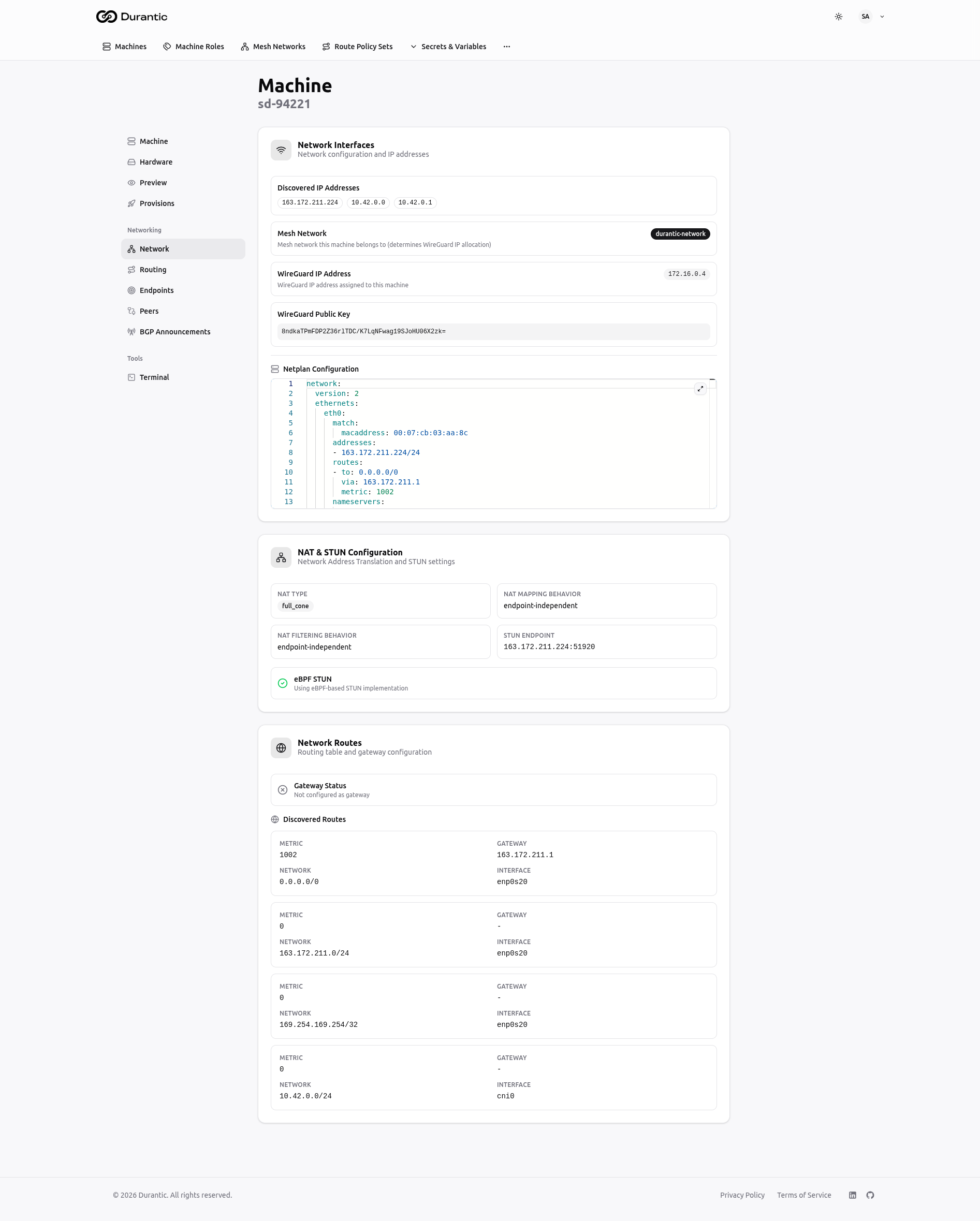
Network Interfaces
| Field | Description |
|---|---|
| Discovered IP Addresses | All IP addresses detected on the machine's network interfaces |
| Mesh Network | The mesh network this machine belongs to, with a link to view the network |
| WireGuard IP Address | The machine's IP within the mesh network CIDR |
| WG Public Key | The machine's WireGuard public key |
| Netplan Configuration | The machine's Netplan YAML configuration displayed in a code editor |
NAT & STUN Configuration
| Field | Description |
|---|---|
| NAT Type | The detected NAT type (e.g., "full_cone") |
| NAT Mapping Behavior | How the NAT maps outbound connections (e.g., "endpoint-independent") |
| NAT Filtering Behavior | How the NAT filters inbound connections (e.g., "endpoint-independent") |
| STUN Endpoint | The public IP and port as observed by the STUN server |
| eBPF STUN | Indicates whether eBPF-based STUN is active on the machine |
Network Routes
- Gateway Status — Whether a default gateway is configured.
- Discovered Routes — A table of all routes on the machine, showing Metric, Destination (CIDR), Gateway, and Interface for each route.
Routing (RIB)
The Routing tab displays the BGP Routing Information Base — the set of routes this machine knows about through BGP.
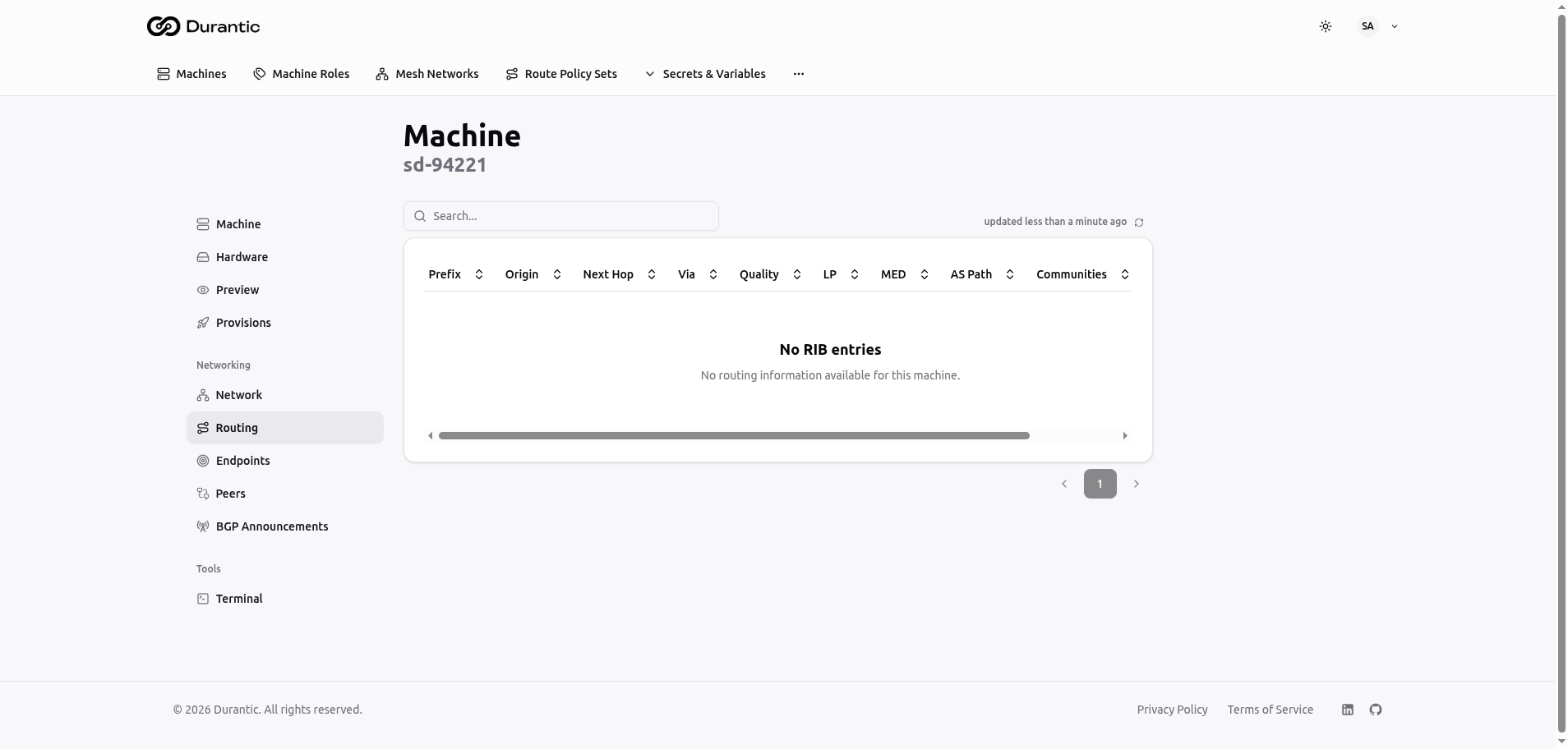
| Column | Description |
|---|---|
| Prefix | The network prefix (CIDR) |
| Origin | How the route was learned (IGP, EGP, Incomplete) |
| Next Hop | The next-hop IP address for this route |
| Via | The peer that advertised this route |
| Quality | Path quality metric |
| LP | Local Preference value |
| MED | Multi-Exit Discriminator value |
| AS Path | The sequence of autonomous systems the route traverses |
| Communities | BGP community tags attached to the route |
When no routes are present, the table shows "No RIB entries — No routing information available for this machine."
Endpoints
The Endpoints tab shows the public-facing network endpoints observed for this machine. These are used by the mesh networking system for peer-to-peer connectivity.
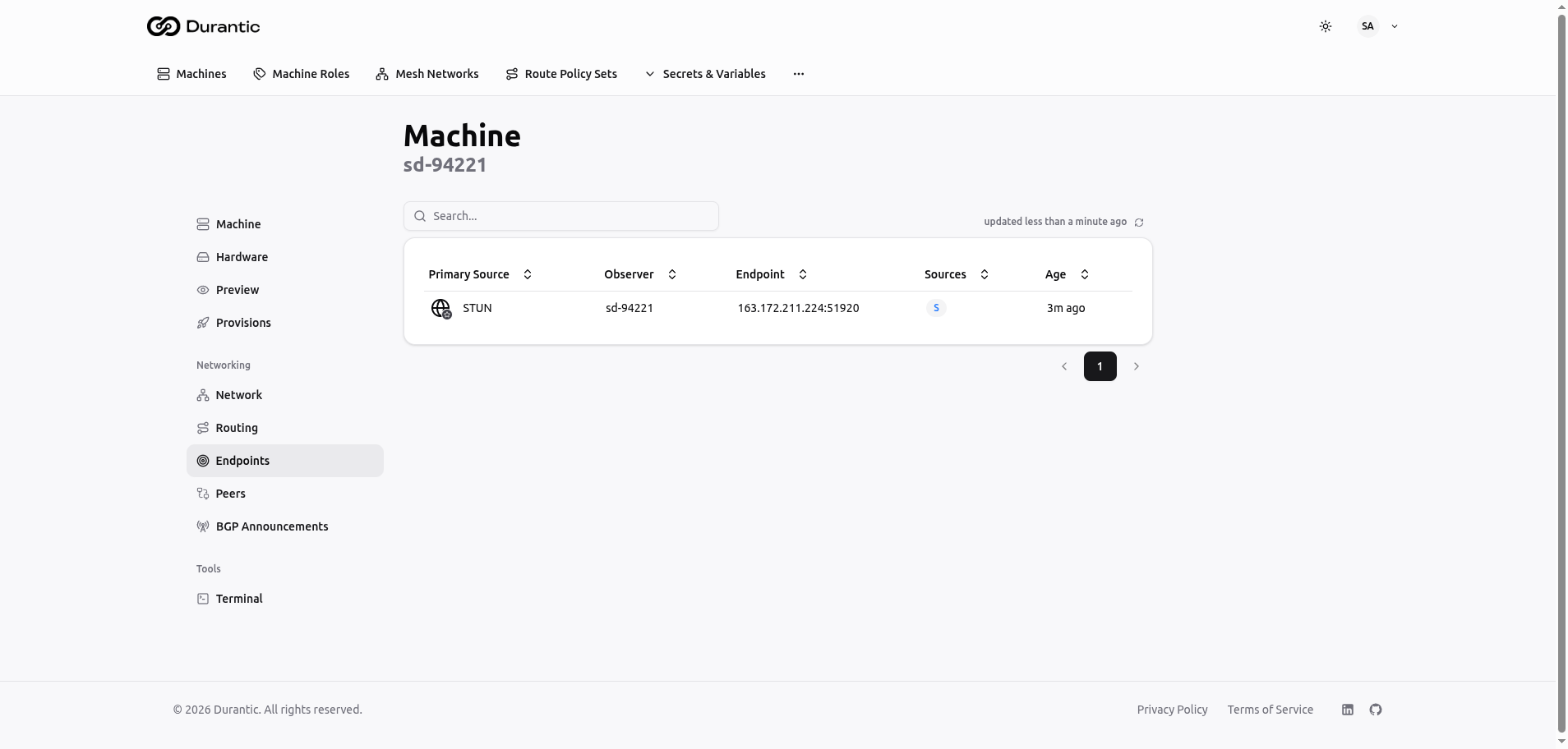
| Column | Description |
|---|---|
| Primary Source | How the endpoint was discovered: STUN (via STUN server reflection), Peer (reported by a connected peer), or Mesh (observed within the mesh) |
| Observer | The machine or service that observed the endpoint |
| Endpoint | The public IP address and port (e.g., 163.172.211.224:51920) |
| Sources | Count of distinct sources that have observed this endpoint. Click to see details. |
| Age | How long ago the endpoint was last observed |
Peers
The Peers tab shows the connectivity status between this machine and every other machine in its mesh network.
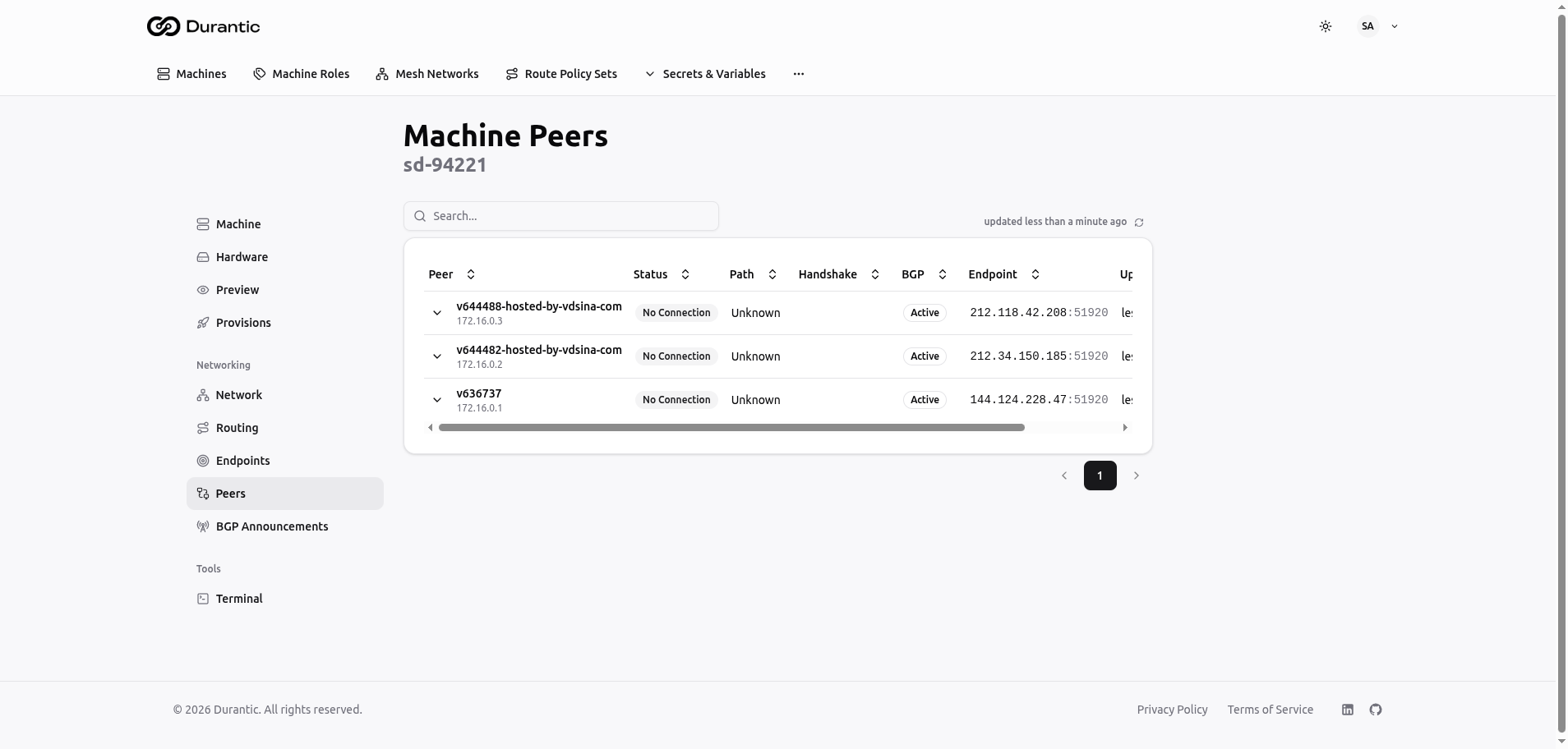
| Column | Description |
|---|---|
| Peer | The peer machine's hostname and WireGuard IP address |
| Status | Connection state: Connected (active tunnel), Partial (one direction working), No Connection (tunnel not established) |
| Path | How traffic reaches the peer: Direct (peer-to-peer) or Transit (relayed through another machine) |
| Handshake | Time since the last WireGuard handshake |
| BGP | BGP session state with this peer (Active, Established, etc.) |
| Endpoint | The IP address and port used to reach this peer |
| Updated | When the peer status was last refreshed |
Each row has an expand arrow on the left. Click it to reveal bidirectional metrics showing detailed connectivity measurements in both directions between the two machines.
BGP Announcements
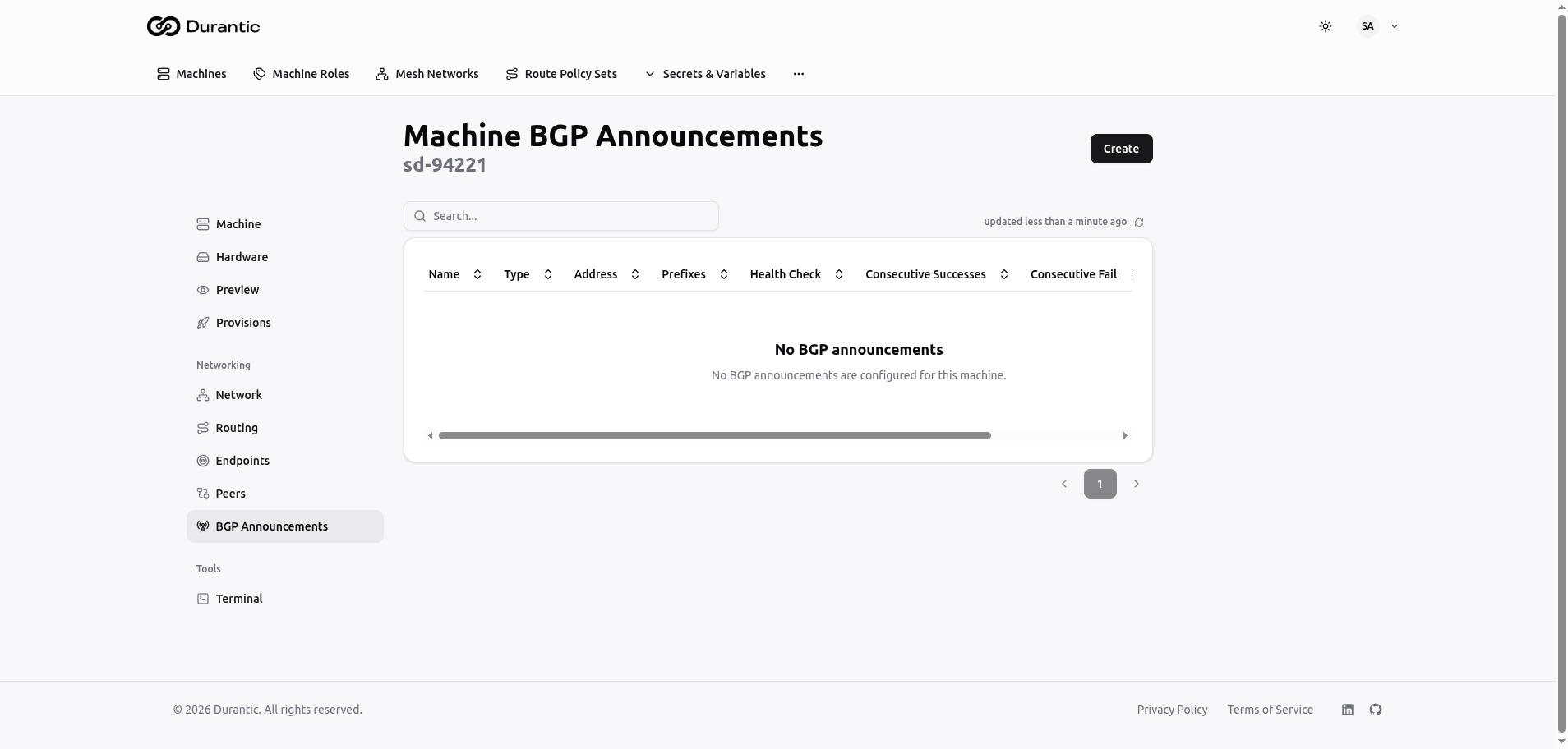
The BGP Announcements tab lists the BGP routes configured for this specific machine.
| Column | Description |
|---|---|
| Name | The announcement name |
| Type | VIP (Virtual IP) or Route |
| Address | The IP address being announced |
| Prefixes | Network prefixes included in the announcement |
| Health Check | The health check protocol configured (TCP, HTTP, gRPC, Exec, or None) |
| Consecutive Successes | Number of consecutive successful health checks |
| Consecutive Failures | Number of consecutive failed health checks |
Click Create in the top-right corner to add a new BGP announcement for this machine. See the BGP Announcements page for details on creating announcements.
When no announcements exist, the table shows "No BGP announcements — No BGP announcements are configured for this machine."
Terminal
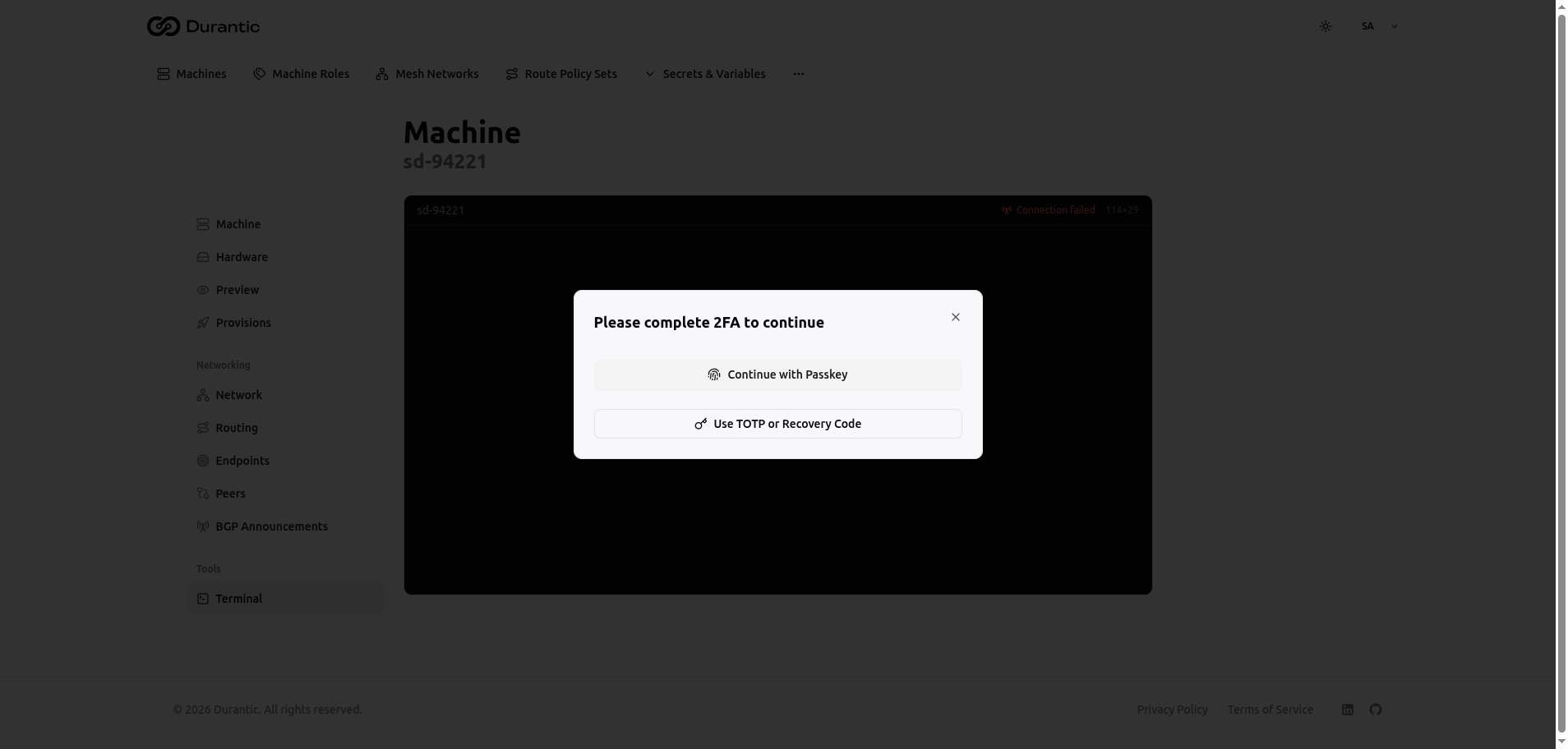
The Terminal tab provides an interactive remote shell session to the machine, directly from the dashboard.
Two-Factor Authentication
Terminal access requires 2FA verification each time you connect. A dialog appears with two options:
- Continue with Passkey — Authenticate using a WebAuthn-compatible device (hardware key, fingerprint sensor, or platform authenticator).
- Use TOTP or Recovery Code — Enter a six-digit code from your authenticator app or a recovery code.
You must have at least one 2FA method configured in your account security settings before you can use the terminal.
Using the Terminal
After completing 2FA, a full PTY shell session opens in the browser. The terminal header bar shows:
- Machine hostname — Displayed on the left.
- Connection status — Displayed on the right. Shows "Connection failed" in red if the machine is offline, or the active connection state.
If the connection drops, use the reconnect button to re-establish the session. A new 2FA verification may be required on reconnect.