Machines
The Machines page is the main landing page of the dashboard. It lists every machine registered with your account and provides the Bootstrap button to add new machines.
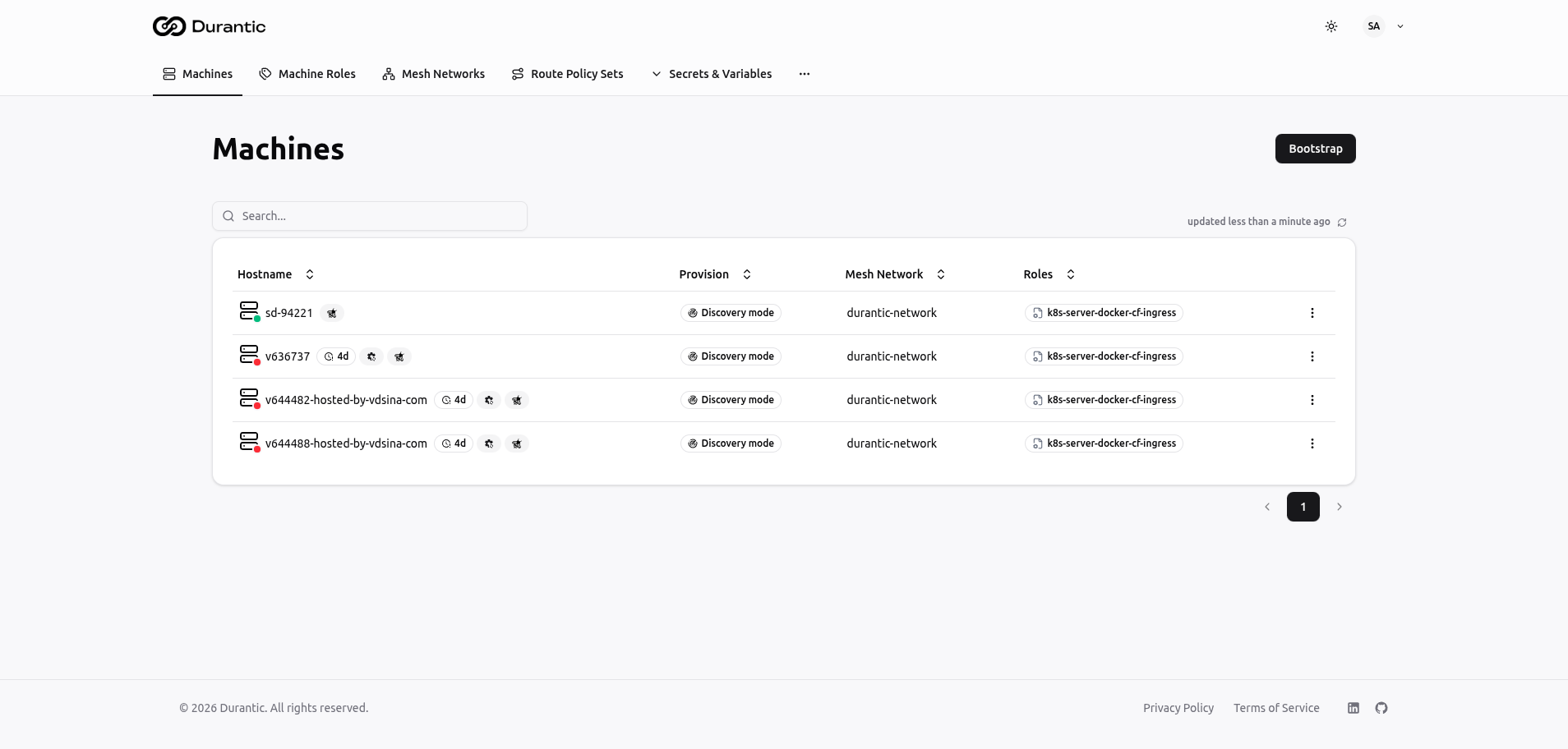
Table Columns
| Column | Description |
|---|---|
| Hostname | The machine's hostname. Includes a colored dot indicating online (green) or offline (red) status. May also display badges for eBPF support and pending configuration changes. |
| Provision | Current provisioning state of the machine. Common values: Discovery mode (newly registered, awaiting configuration), Install pending, Installing, Installed, Failed. |
| Mesh Network | The mesh network the machine belongs to, if any. |
| Roles | Tags showing the machine roles assigned to this machine. |
Each row also has a three-dot menu on the right for actions such as delete.
Clicking a hostname navigates to the machine detail page.
Online and Offline Status
Each machine's hostname is preceded by a colored status dot:
- Green dot — The machine is online. The agent has sent a heartbeat within the last 60 seconds.
- Red dot — The machine is offline. The dot is accompanied by a time label showing how long ago the machine was last seen (for example, "4d" means 4 days ago).
Bootstrap Button
The Bootstrap button in the top-right corner opens the Bootstrap Machine dialog. This dialog lets you generate credentials to register a new machine with the control plane.
There are three bootstrap methods. Select one by clicking its card at the top of the dialog.
Durantic CLI
The fastest method for machines with an existing Linux installation and internet access.
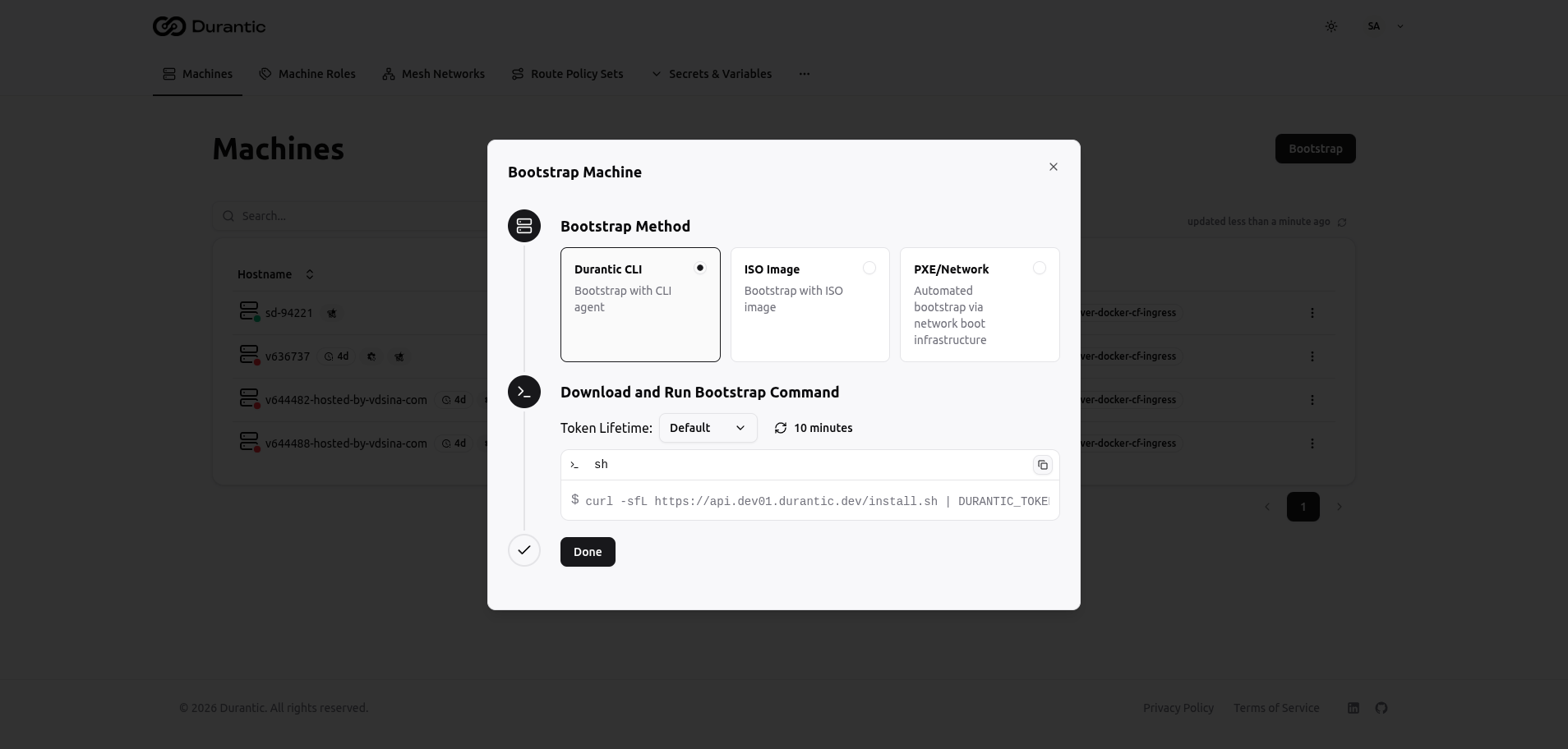
How it works:
- Select the Token Lifetime from the dropdown. The default is 10 minutes. Other options: 1 day, 7 days, 30 days, 90 days, 365 days.
- Copy the one-line
curlcommand displayed in the dialog. The command downloads and runs the Durantic install script with an embedded JWE bootstrap token. - Run the command as root on the target machine.
- Click Done to close the dialog.
The command looks like:
ISO Image
Best for machines that need to be booted from removable media or a virtual CD-ROM.
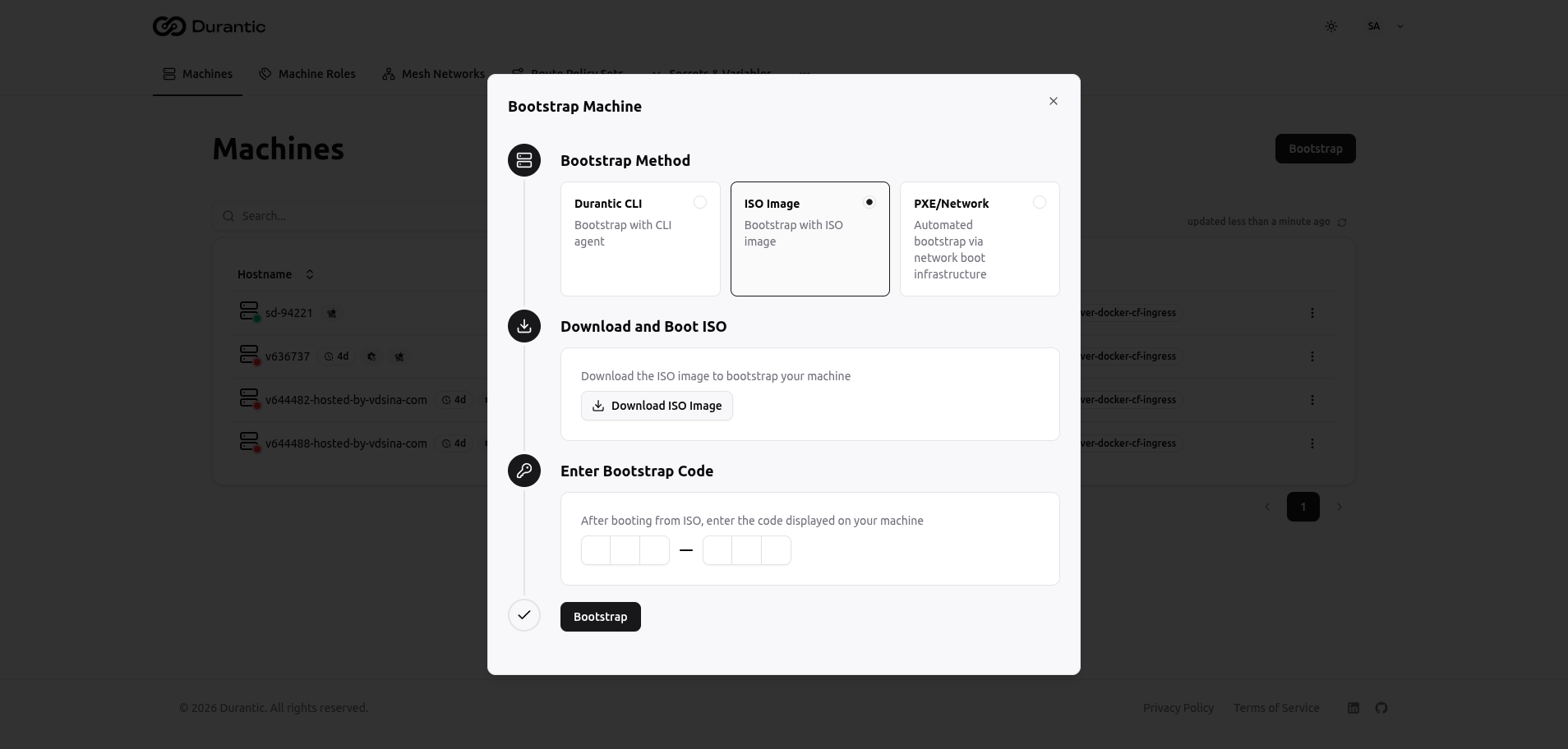
How it works:
- Click Download ISO Image to download the Durantic bootstrap ISO.
- Write the ISO to a USB drive or mount it as a virtual CD-ROM, then boot the target machine from it.
- The machine displays a 6-character bootstrap code on its console after booting.
- Enter that 6-character code in the dashboard dialog (three characters, dash, three characters).
- Click Bootstrap to complete registration.
PXE/Network
For environments with existing PXE boot infrastructure (TFTP, HTTP, or NFS servers).
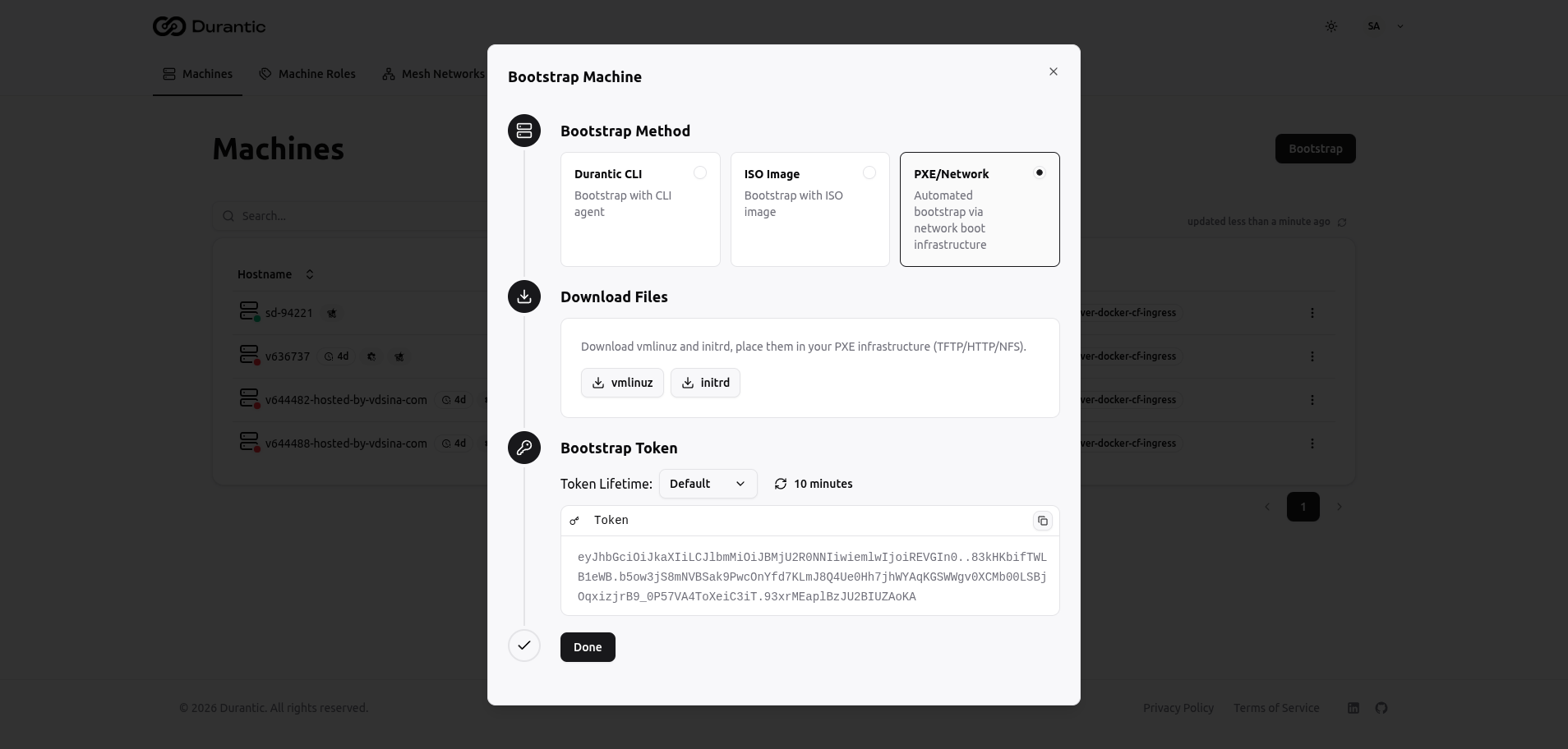
How it works:
- Click the vmlinuz and initrd download buttons to get the kernel and initial ramdisk files.
- Place these files on your PXE server (TFTP, HTTP, or NFS).
- Configure your PXE boot menu to boot from these files, passing the bootstrap token as a kernel parameter.
- Select the Token Lifetime and copy the generated token from the dialog.
- Click Done to close the dialog.
After Bootstrap
Once a machine successfully bootstraps, it appears in the Machines list in Discovery mode. From here you can:
- Click the machine hostname to open its detail page.
- Assign machine roles and a mesh network.
- Trigger provisioning to install the operating system and apply configuration.