Machine Provisioning
Overview
Provisioning is the process of installing an operating system onto a machine. Durantic provisions machines by streaming an OCI (Docker) image directly to disk, then applying a cloud-init configuration generated from the machine's assigned roles.
The entire process is automated. Once you trigger provisioning, the agent handles image download, disk partitioning, filesystem extraction, configuration injection, and reboot — no manual intervention required.
Bootstrap Methods
Before you can provision a machine, it needs to connect to the control plane. There are three ways to bootstrap a machine.
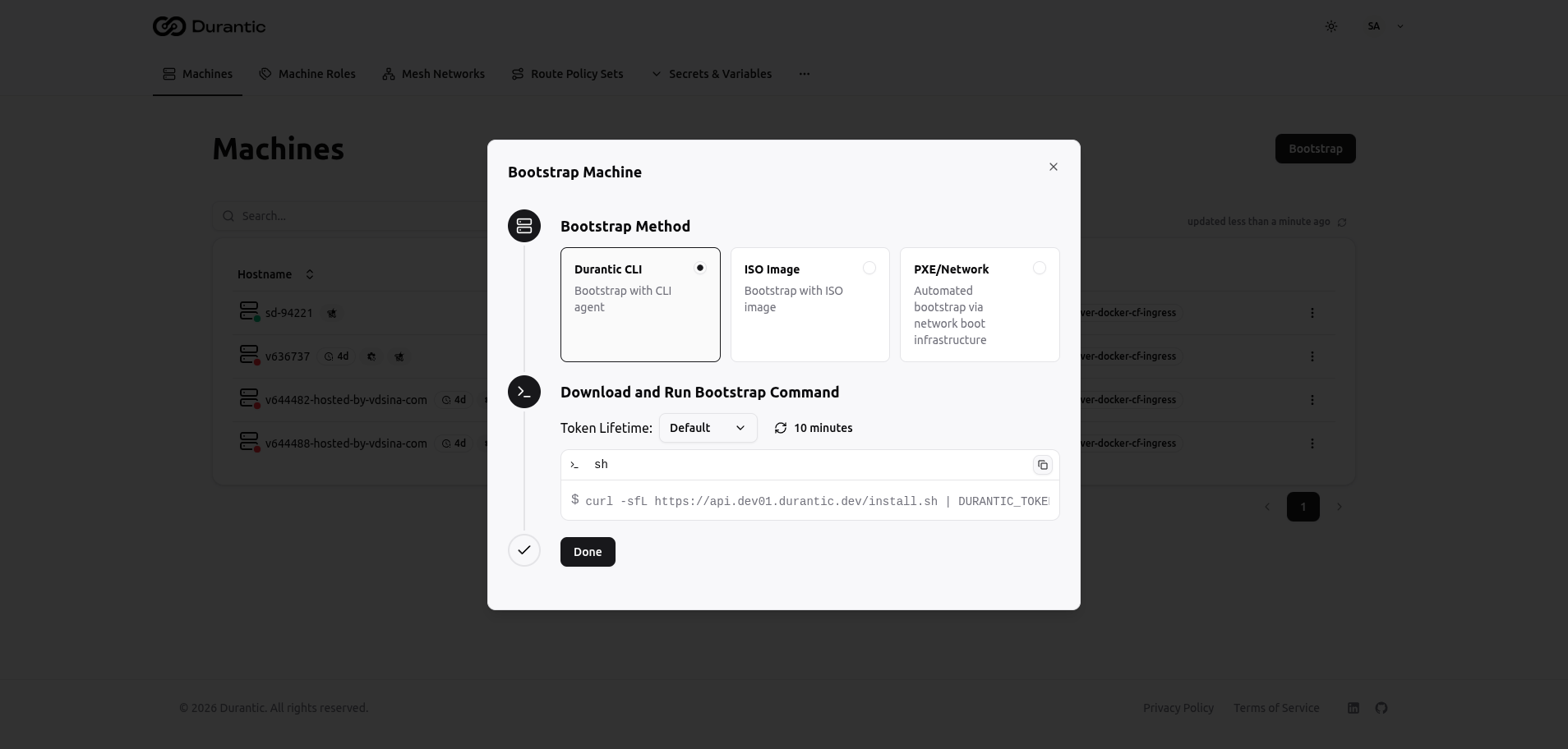
Durantic CLI (Recommended)
The fastest way to bring a machine under management. Run a single command on the target machine:
The token is a JWE-encrypted, stateless credential generated from the dashboard. No server-side state is stored for the token itself.
ISO Image
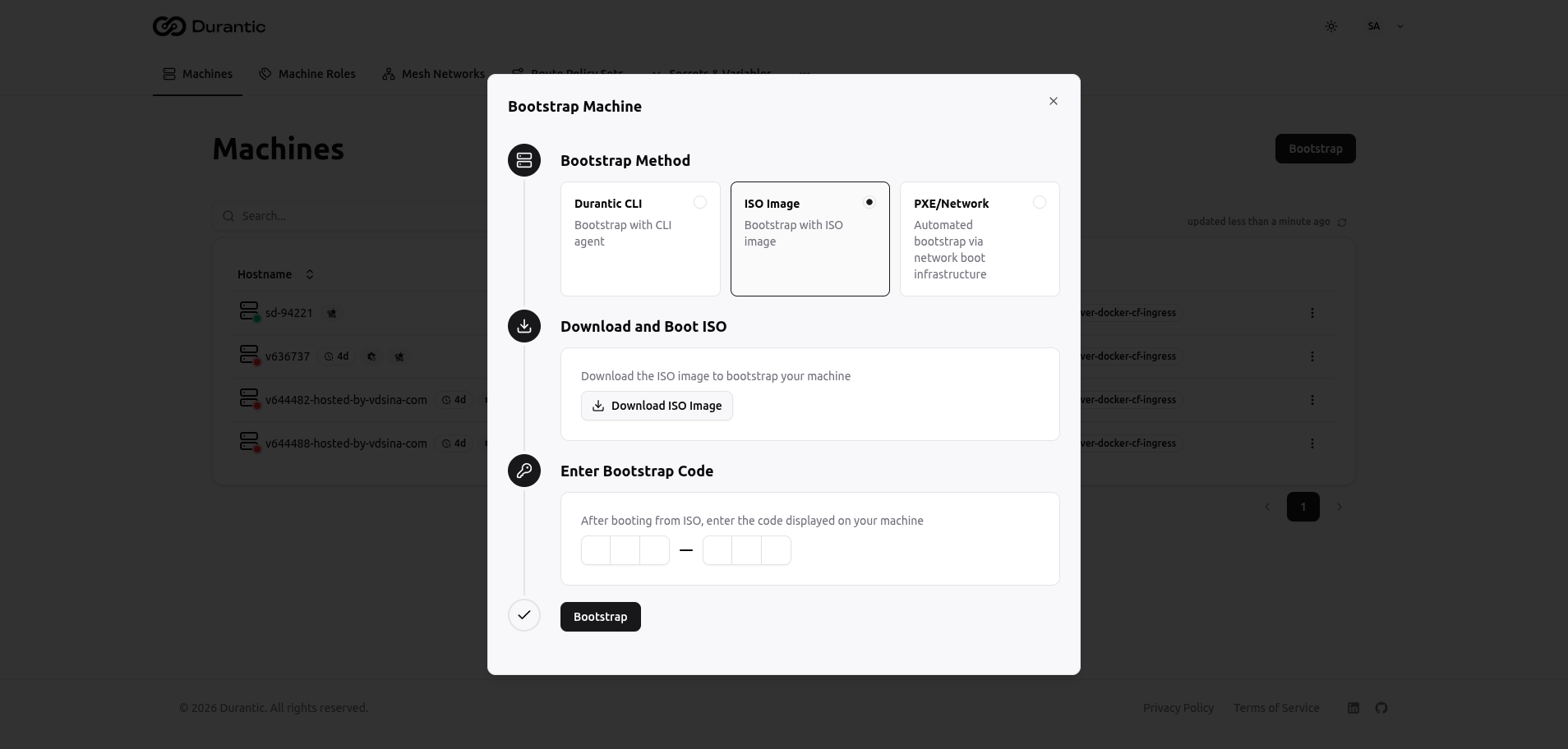
For machines where you have physical or virtual console access:
- Download the Durantic ISO from the dashboard.
- Boot the machine from the ISO.
- The machine displays a 6-character approval code on screen.
- Enter the approval code in the dashboard to approve the machine.
This method works well when you cannot run arbitrary commands on the machine before provisioning.
PXE / Network Boot
For fleet deployments where you manage a PXE infrastructure:
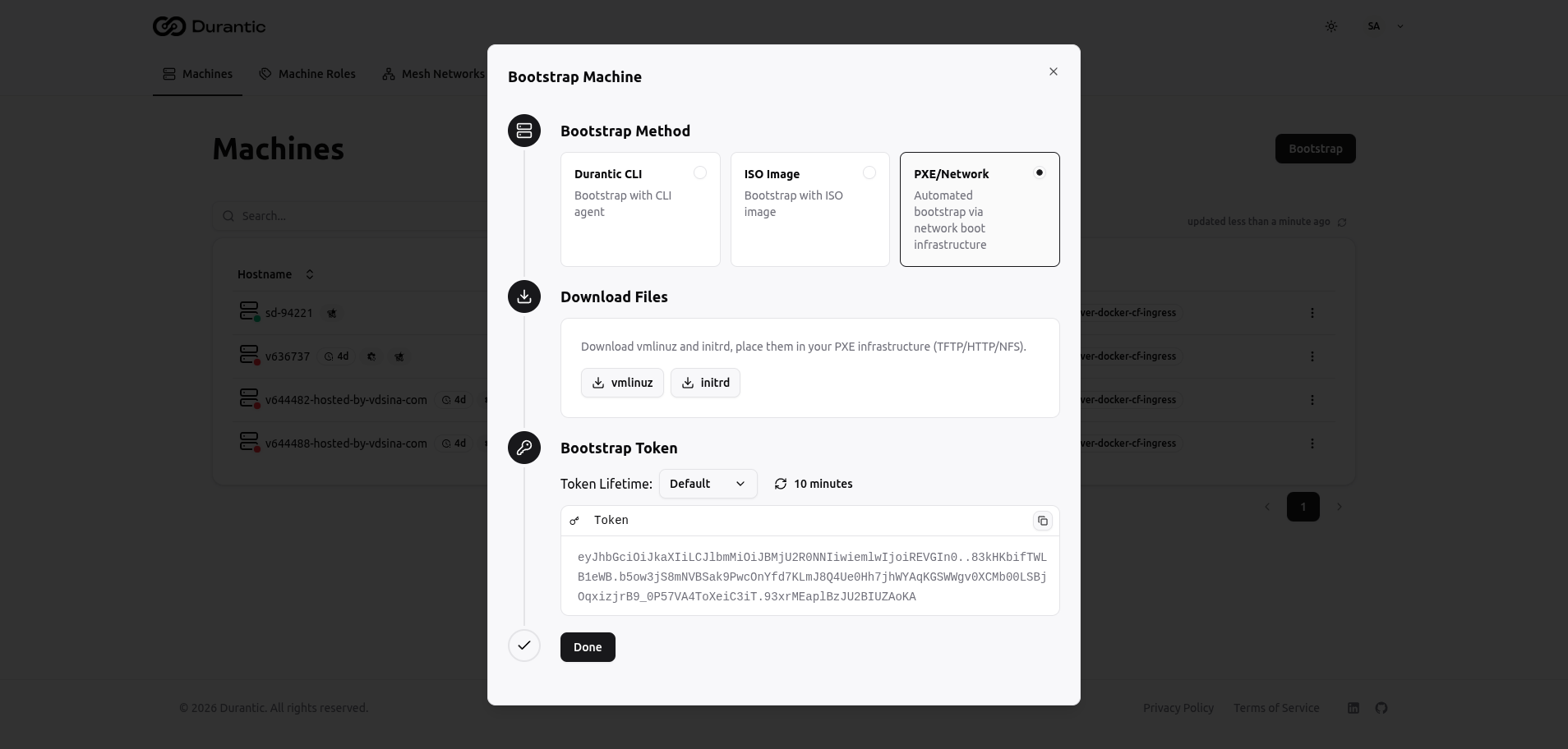
- Download the
vmlinuzandinitrdfiles from the dashboard. - Configure your PXE server to serve these files.
- Pass the bootstrap token as a kernel parameter.
This method is reusable — configure it once and boot as many machines as you need. The same token works for all machines until it expires.
Bootstrap Token
Bootstrap tokens control how machines authenticate with the control plane during initial registration.
| Setting | Options |
|---|---|
| Default lifetime | 10 minutes |
| Extended lifetimes | 1 day, 7 days, 30 days, 90 days, 365 days |
| Reusability | Reusable until expiration |
A single token can bootstrap multiple machines. This is especially useful with the PXE method for fleet deployments where many machines boot with the same token.
The Provisioning Process
When you trigger provisioning, the agent executes the following steps in order:
| Step | Description |
|---|---|
| Image Inspection | The agent connects to the OCI registry, verifies the image manifest, and determines the layers to download. |
| Bootloader Streaming | Layer 0 of the OCI image — a compressed raw disk containing bootloaders — is streamed directly to the target disk. |
| Partition Resize | The agent resizes the root partition to fill the available disk space. |
| Layer Extraction | Remaining OCI layers (layer 1 and above) are extracted onto the root filesystem. This is typically the longest step, as it contains the full operating system. |
| Cloud-Init Configuration | The merged cloud-init configuration from all assigned roles is written to disk so it executes on first boot. |
| Agent Injection | The Durantic agent binary and its configuration are installed into the new filesystem so the machine reconnects to the control plane after reboot. |
| Sync and Reboot | Disk buffers are flushed and the machine reboots into the newly installed operating system. |
Monitoring Progress
The Provisions tab on a machine's detail page shows real-time provisioning progress.
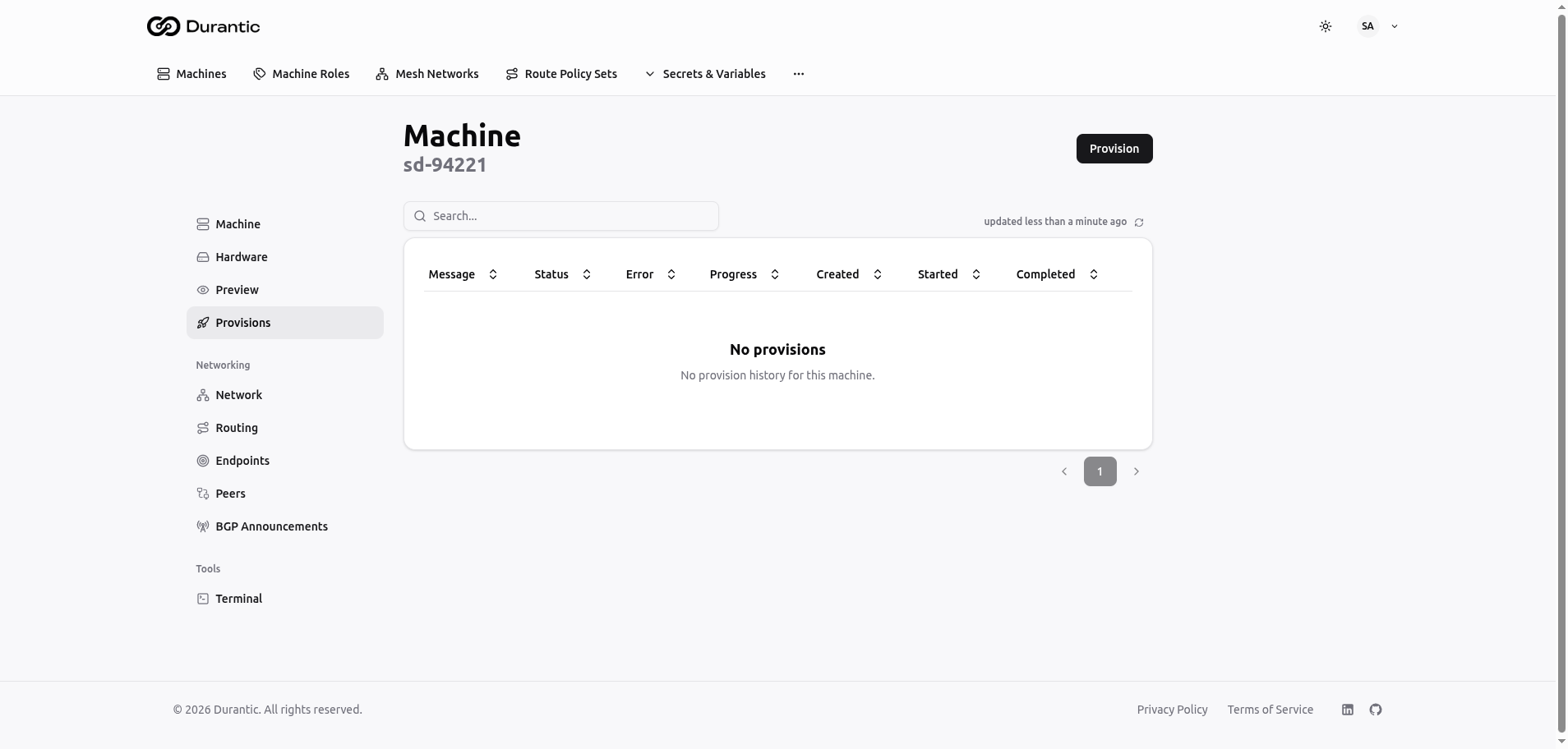
Each provisioning run displays:
- Status — The current state (queued, in progress, completed, or failed).
- Percentage — Overall progress as a percentage.
- Current Step — Which step of the provisioning process is currently executing.
- Timestamps — When provisioning started and, once finished, when it completed.
OCI Images
Durantic uses standard Docker/OCI images as operating system packages. This means you can build, tag, push, and pull OS images using familiar container tooling.
An OCI image used for provisioning has a specific layer structure:
| Layer | Contents |
|---|---|
| Layer 0 | Compressed raw disk image containing bootloaders and partition table |
| Layer 1+ | Full operating system filesystem (packages, configuration, kernel) |
Images can be hosted in any OCI-compatible registry — Docker Hub, GitHub Container Registry, Google Artifact Registry, or a self-hosted registry. Configure the image URL and registry credentials in your account's Organization settings.
Re-Provisioning
You can re-provision a machine at any time to reinstall or change its operating system:
- Navigate to the machine's detail page.
- Open the Provisions tab.
- Click Provision.
- Confirm the action.
The machine reboots into the installer environment and the provisioning process begins again. Any data on the machine's disk will be overwritten.