Account Setup
This guide walks you through logging in to Durantic and configuring your account settings.
Logging In
Durantic supports three authentication methods:
-
Passkey (WebAuthn) — Sign in using a hardware security key, fingerprint sensor, or platform authenticator built into your device. This is the most secure option and does not require a password.
-
OAuth Provider — Sign in with an existing identity provider such as Google or GitHub. This links your external account to your Durantic account.
-
Magic Link — Enter your email address and receive a one-time sign-in link. No password needed — just check your inbox and click the link.
You can use any of these methods interchangeably once your account is set up. All three lead to the same account as long as the email address matches.
Account Settings Overview
Account settings are accessible from the sidebar. The settings are organized into three groups:
Organization - Organization — General organization settings - Members — Team member management
Account - Email — Email address configuration - Connected Accounts — Linked OAuth providers
Security - 2FA — Two-factor authentication - Sessions — Active session management
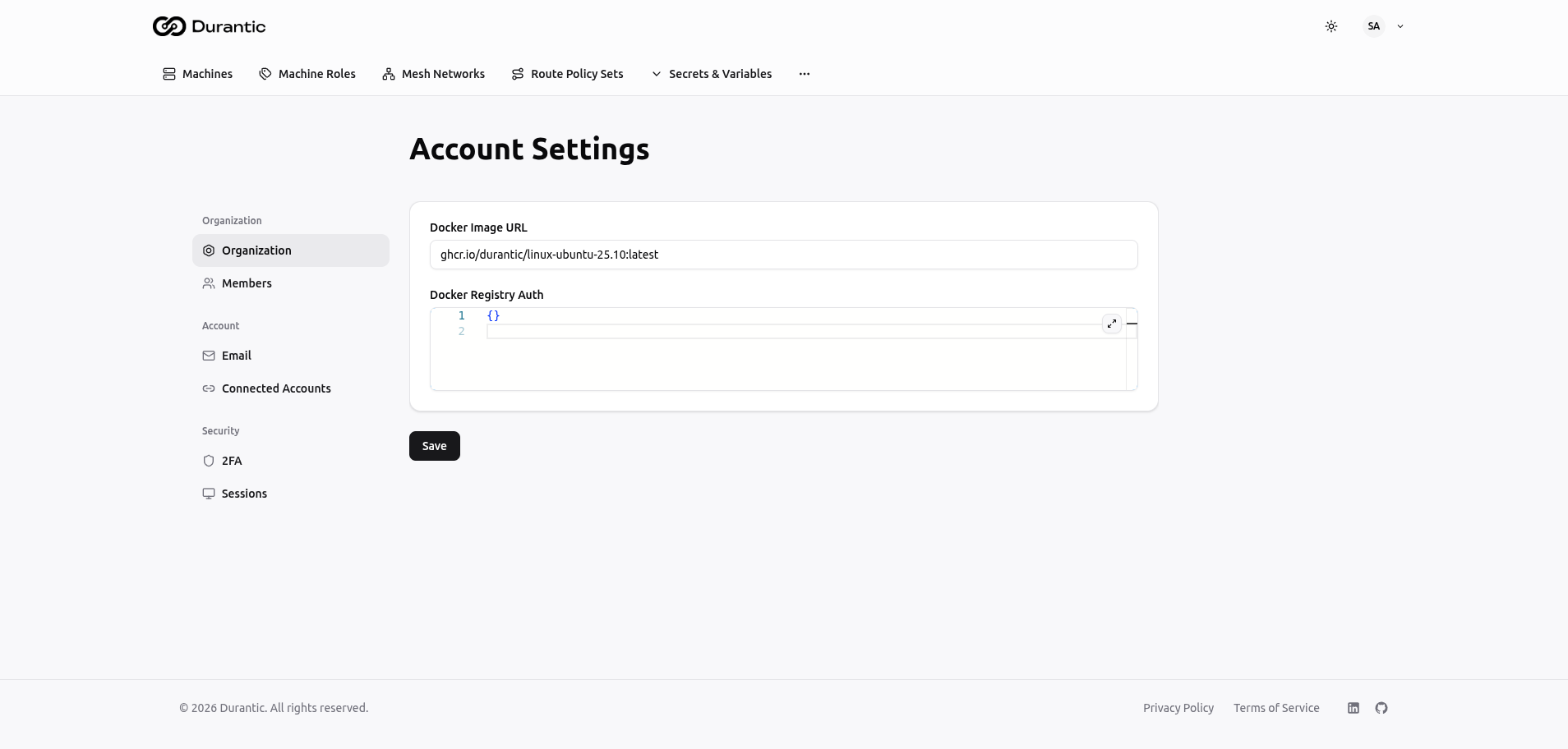
Organization Settings
The Organization page contains settings that apply to your entire workspace:
-
Docker Image URL — The OCI image URL that will be installed on your machines during provisioning. This points to the operating system image stored in your OCI registry.
-
Docker Registry Auth — Credentials for accessing private OCI registries. If your OS image is stored in a private registry, provide the authentication details here so the agent can pull the image during provisioning.
Members
The Members page lets you invite and manage team members in your organization:
- Invite new members by email address.
- View all current members and their roles.
- Remove members who no longer need access.
All members within an organization share access to the same machines, roles, mesh networks, and secrets.
Email and Connected Accounts
Email — View and manage the email address associated with your account. This is the address used for magic link sign-in and notifications.
Connected Accounts — Link or unlink OAuth providers (such as Google or GitHub) to your Durantic account. Connecting an OAuth provider gives you an additional sign-in method without needing a magic link or passkey.
Security
Two-Factor Authentication (2FA)
Add a second layer of protection to your account. Durantic supports two types of 2FA:
-
TOTP (Time-Based One-Time Password) — Use an authenticator app such as Google Authenticator, Authy, or 1Password to generate six-digit codes.
-
Passkey — Register a WebAuthn-compatible device (hardware key, fingerprint sensor, or platform authenticator) as a second factor.
You can enable both methods simultaneously for maximum flexibility.
Sessions
The Sessions page shows all active sessions for your account, including:
- Device and browser information
- IP address
- Last activity timestamp
You can revoke any session to immediately sign out that device. This is useful if you suspect unauthorized access or want to clean up old sessions.